# Collect Writing NFT by LIKE on desktop

{% hint style="warning" %}
The documentation is designed for Liker Land and LikeCoin v2. For information on [3ook.com](https://3ook.com/) and LikeCoin v3, please visit [docs.3ook.com](https://docs.3ook.com) and [dao.like.co](https://dao.like.co/).
{% endhint %}

You can purchase Writing NFT with LikeCoin, which not only supports creators' work, but also allows supporters to leave messages to motivate their favorite creators. These messages will always be attached to the work and will be recorded in the remarks field in the on-chain record.

## Step 1: Connect Wallet

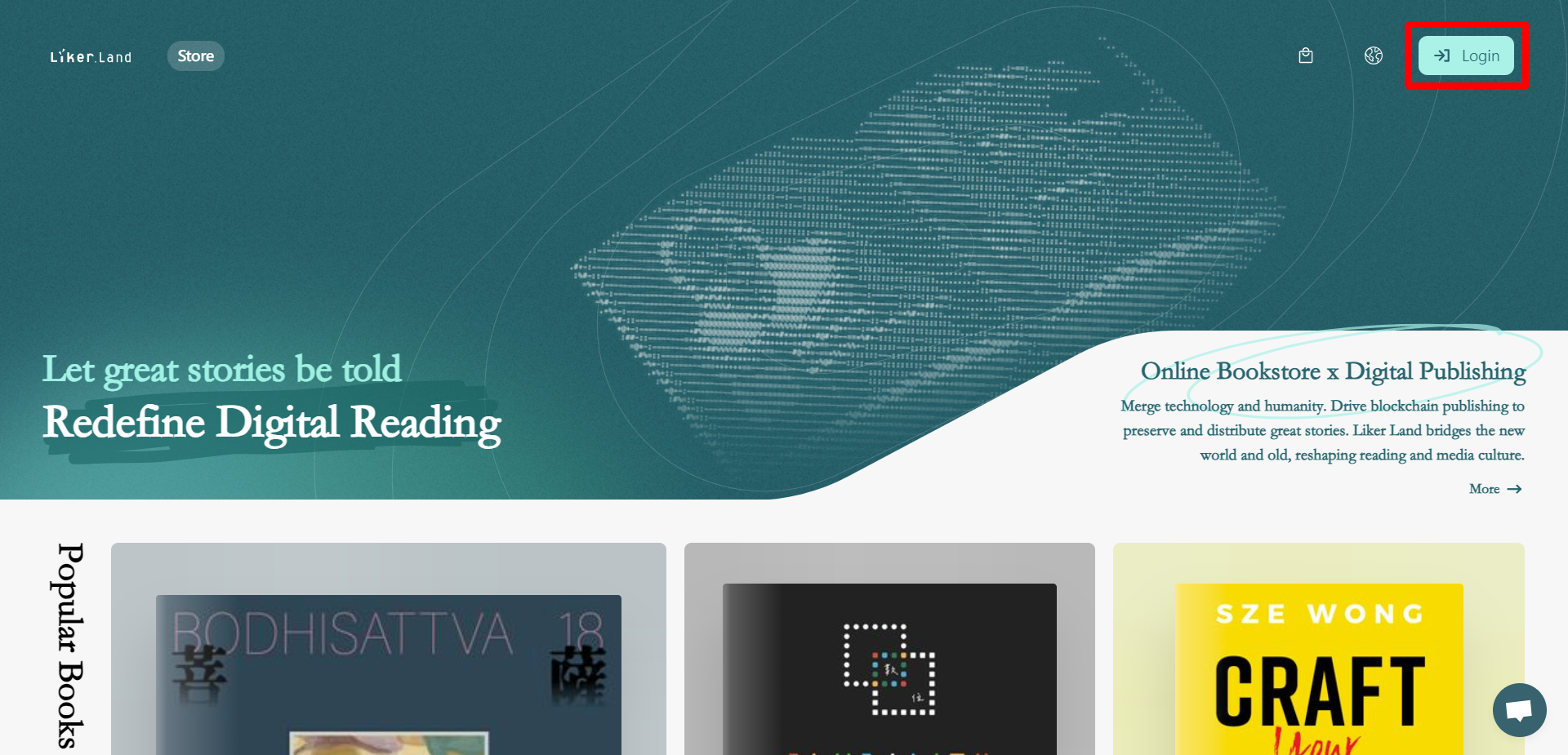
Go to the upper right corner of the Liker Land website and click "Login".

<figure><img src="/files/MA7Bx1XaS6iT3CGnLWB2" alt=""><figcaption><p>Click "Login"</p></figcaption></figure>

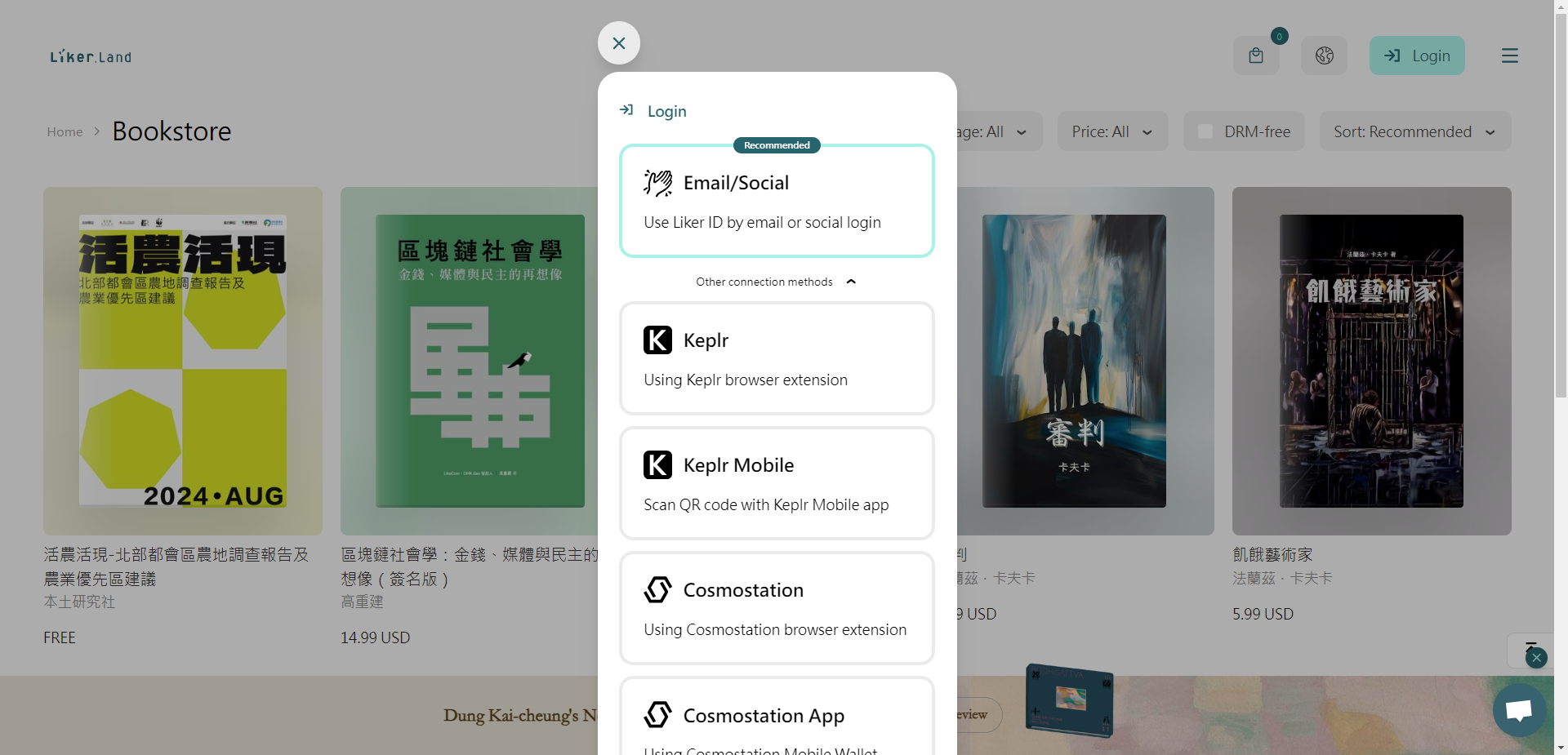
Or click "Collect Now", "Collect" or the current NFT price and choose [Email/Social](/depub/register.md), [Keplr](#keplr), [Cosmostation](#cosmostation), [Leap](#leap), [Keplr mobile](#keplr-mobile), [Cosmostation app](#cosmostation-app) or [LikeCoin app](#liker-land-app)...etc to connect wallet, login and purchase Writing NFT.

<figure><img src="/files/KAS3M5Y3Y0k3Cs3ahRy8" alt=""><figcaption><p>Various kind of logins</p></figcaption></figure>

## Step 2: Login and Purchase NFT

### Recommend:thumbsup:Email/Social

After successful login, your avatar will be displayed in the upper right corner of the Liker Land website.

<figure><img src="/files/j3eibL9xO8leZHY6LDkI" alt=""><figcaption><p>After login, your avatar is in the upper right corner of the Liker Land website</p></figcaption></figure>

Click on the Writing NFT price or the collect button and the Collect NFT page pops up. "Leave a signed message to creator" and enter the message if you want to do so, or just click "Pay by LIKE".

<figure><img src="/files/S2bONn6KF6JKBr9cK3rU" alt=""><figcaption><p>Leave a message to creator and Pay by LIKE</p></figcaption></figure>

### Keplr

Please log into [Keplr Browser Extension](/general-guides/wallet/keplr.md) in your browser. After clicking "Keplr", a window will pop up requesting connection, click "Approve". Another pop-up window asks to link the account, click "Approve" again to login.

<figure><img src="/files/Oql8gG6o2e0HeHxsBQMu" alt=""><figcaption><p>Click "Approve" twice to login with Keplr</p></figcaption></figure>

After successful login, your avatar will be displayed in the upper right corner of the Liker Land website.

<figure><img src="/files/j3eibL9xO8leZHY6LDkI" alt=""><figcaption><p>After login, your avatar is in the upper right corner of the Liker Land website</p></figcaption></figure>

Click on the Writing NFT price or the collect button and the Collect NFT page pops up. "Leave a signed message to creator" and enter the message if you want to do so, or just click "Pay by LIKE".

<figure><img src="/files/S2bONn6KF6JKBr9cK3rU" alt=""><figcaption><p>Leave a message to creator and Pay by LIKE</p></figcaption></figure>

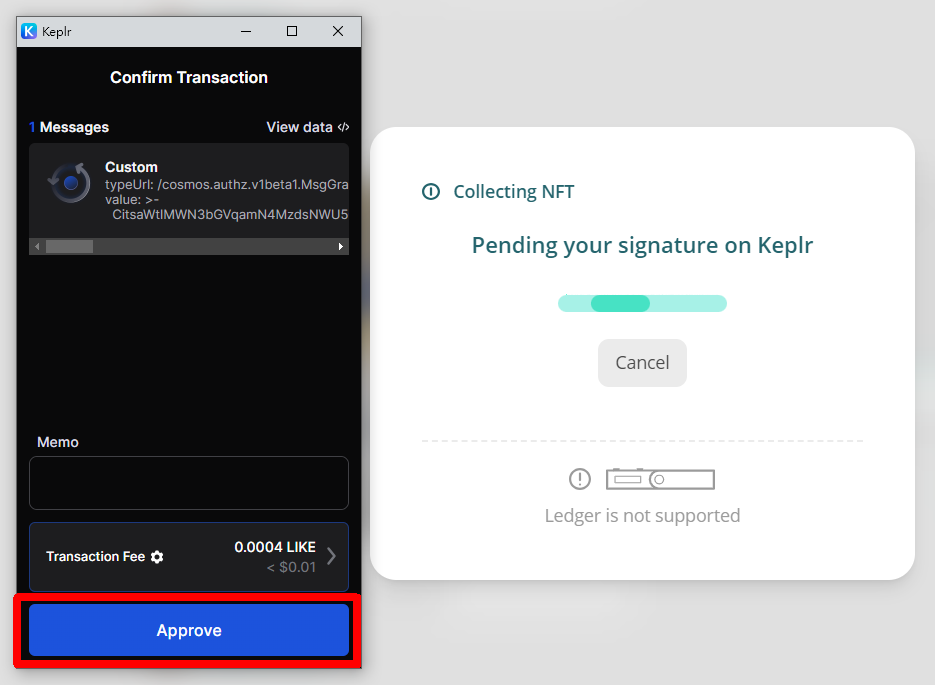
A Keplr window will pop up, then click "Approve" to confirm the purchase.

<figure><img src="/files/OxqRSE11mfkuBOZBMoEI" alt=""><figcaption><p>Keplr window pops up click "Approve" to confirm the purchase</p></figcaption></figure>

### Cosmostation

Please log into [Cosmostation Browser Extension](/general-guides/wallet/cosmostation.md) in your browser. After clicking "Cosmostation", a window will pop up requesting connection, click "Confirm" to login.

<figure><img src="/files/GYmv3eo759tFlWMldbU5" alt=""><figcaption><p>Click "Confirm" at Cosmostation</p></figcaption></figure>

After successful login, your avatar will be displayed in the upper right corner of the Liker Land website.

<figure><img src="/files/j3eibL9xO8leZHY6LDkI" alt=""><figcaption><p>After login, your avatar is in the upper right corner of the Liker Land website</p></figcaption></figure>

Click on the Writing NFT price or the collect button and the Collect NFT page pops up. "Leave a signed message to creator" and enter the message if you want to do so, or just click "Pay by LIKE".

<figure><img src="/files/S2bONn6KF6JKBr9cK3rU" alt=""><figcaption><p>Leave a message to creator and Pay by LIKE</p></figcaption></figure>

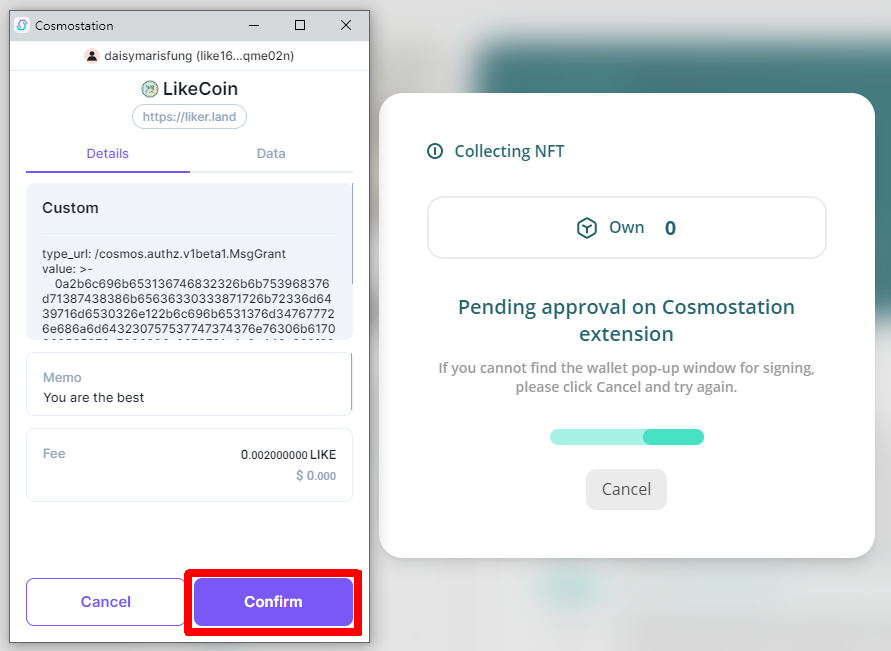
A Cosmostation window will pop up, then click "Confirm" to confirm the purchase.

<figure><img src="/files/yz294PRNzO2cKHfCU0xH" alt=""><figcaption><p>Cosmostation window pops up click "Confirm" to confirm the purchase</p></figcaption></figure>

### Leap

Please log into [Leap Browser Extension](/general-guides/wallet/leap.md) in your browser. After clicking "Leap", a window will pop up requesting connection, click "Connect". Another pop-up window asks to link the account, click "Approve" to login.

<figure><img src="/files/J6F4l451bOvQyyasVkwN" alt=""><figcaption><p>Click "Connect" and "Approve" to login with Leap</p></figcaption></figure>

After successful login, your avatar will be displayed in the upper right corner of the Liker Land website.

<figure><img src="/files/j3eibL9xO8leZHY6LDkI" alt=""><figcaption><p>After login, your avatar is in the upper right corner of the Liker Land website</p></figcaption></figure>

Click on the Writing NFT price or the collect button and the Collect NFT page pops up. "Leave a signed message to creator" and enter the message if you want to do so, or just click "Pay by LIKE".

<figure><img src="/files/S2bONn6KF6JKBr9cK3rU" alt=""><figcaption><p>Leave a message to creator and Pay by LIKE</p></figcaption></figure>

A Leap window will pop up, then click "Approve" to confirm the purchase.

<figure><img src="/files/ISx8ZymiRCQ1iLUd4GUt" alt=""><figcaption><p>A Leap window will pop up, then click "Approve" to confirm the purchase</p></figcaption></figure>

### Keplr mobile

A QR Code will appear after clicking "[Keplr mobile](/general-guides/wallet/keplr-mobile.md)".

<figure><img src="/files/fN5oDDzJauoq3q6GVVUO" alt=""><figcaption><p>After clicking the Cosmostation app, a QR code appears</p></figcaption></figure>

On the Keplr mobile, click the icon on the top righr hand corner to bring up the camera and scan the QR Code.

<figure><img src="/files/WSeiZUZgfbgB0ERgZgXk" alt=""><figcaption><p>Click the icon on the top righr hand corner to scan the QR code</p></figcaption></figure>

Click "Approve" to connect with Liker Land and click "Approve" again to link the account and login.

<div><figure><img src="/files/Gtm0DSsyFxZpFjn6FtlS" alt=""><figcaption><p>Click "Approve" to connect with Liker Land</p></figcaption></figure> <figure><img src="/files/1mBvrRFAfk4B6fjeOyoS" alt=""><figcaption><p>Then click "Approve" to link the account</p></figcaption></figure></div>

After successful login, your avatar will be displayed in the upper right corner of the Liker Land website.

<figure><img src="/files/j3eibL9xO8leZHY6LDkI" alt=""><figcaption><p>After login, your avatar is in the upper right corner of the Liker Land website</p></figcaption></figure>

Click on the Writing NFT price or the collect button and the Collect NFT page pops up. "Leave a signed message to creator" and enter the message if you want to do so, or just click "Pay by LIKE".

<figure><img src="/files/S2bONn6KF6JKBr9cK3rU" alt=""><figcaption><p>Leave a message to creator and Pay by LIKE</p></figcaption></figure>

The desktop computer displays the "Pending your signature on Keplr mobile app" window.

<figure><img src="/files/ZLeHX8P0thRzCYjidDSJ" alt=""><figcaption><p>The desktop computer displays the "Pending your signature on Keplr mobile app" window</p></figcaption></figure>

The Keplr mobile pops up the Confirm Transaction window, click "Approve" to confirm purchase.

<figure><img src="/files/ggXuZJjNPTzOH8tkr7M6" alt=""><figcaption><p>Keplr mobile window pops up, click "Approve" to confirm the purchase</p></figcaption></figure>

### Cosmostation app

A QR Code will appear after clicking "[Cosmostation app](/general-guides/wallet/cosmostation-app.md)".

<figure><img src="/files/4ihfrxs1ZmKgEu0FBCQ8" alt=""><figcaption><p>After clicking the Cosmostation app, a QR code appears</p></figcaption></figure>

On the Cosmostation app, click "Wallet Connect" to bring up the camera and scan the QR Code.

<figure><img src="/files/3EXZBRekEpK25PbkYvma" alt=""><figcaption><p>Open the Cosmostation app, tap Wallet Connect to scan the QR code</p></figcaption></figure>

Enter the PIN code to confirm.

<figure><img src="/files/UiQryq5PsloqoKGBmWpR" alt=""><figcaption><p>PIN Code Authentication</p></figcaption></figure>

Click "OK" to confirm and click "Confirm" to link the account.

<div><figure><img src="/files/IVmhwrl5eprLU8DMIPG8" alt=""><figcaption><p>Click "OK" to confirm</p></figcaption></figure> <figure><img src="/files/1kMPMvSLtVN5l7Vqs0BO" alt=""><figcaption><p>Click "Confirm" to link the account</p></figcaption></figure></div>

Connected successfully.

<figure><img src="/files/VSNUmgSYppq0xlNleFhN" alt=""><figcaption><p>Successfully connected to Liker Land</p></figcaption></figure>

After successful login, your avatar will be displayed in the upper right corner of the Liker Land website.

<figure><img src="/files/j3eibL9xO8leZHY6LDkI" alt=""><figcaption><p>After login, your avatar is in the upper right corner of the Liker Land website</p></figcaption></figure>

Click on the Writing NFT price or the collect button and the Collect NFT page pops up. "Leave a signed message to creator" and enter the message if you want to do so, or just click "Pay by LIKE".

<figure><img src="/files/S2bONn6KF6JKBr9cK3rU" alt=""><figcaption><p>Leave a message to creator and Pay by LIKE</p></figcaption></figure>

The desktop computer displays the "Collecting NFT" window.

<figure><img src="/files/2Crf8rsZQxUYByPaAueY" alt=""><figcaption><p>The desktop computer displays the window of Collecting NFT</p></figcaption></figure>

The Cosmostation app pops up the Request Transaction Sign window, click "Confirm" to confirm purchase.

<figure><img src="/files/VERsf54VynY5OeSPNJyZ" alt=""><figcaption><p>Cosmostation app window pops up, click "Confirm" to confirm the purchase</p></figcaption></figure>

### LikeCoin app

#### Video Tutorial

[Mobile Wallet Connect to app.like.co by Liker Land app](https://www.youtube.com/watch?v=OycNwW3a91c)

A QR Code will appear after clicking "Liker ID".

<figure><img src="/files/9X5BTV8djd86f2R40ewt" alt=""><figcaption><p>After clicking Liker ID, a QR code appears</p></figcaption></figure>

On the [LikeCoin app](/general-guides/dapp/liker-land/download.md), click the QR Code icon to bring up the camera, and scan the QR Code.

<figure><img src="/files/ZYkZJfeM9OzmFFd3EugF" alt=""><figcaption><p>Open the LikeCoin app, click and scan the QR Code</p></figcaption></figure>

Click "Approve" to connect with Liker Land and click "Approve" again to link the account and login.

<div><figure><img src="/files/vwzfZYOmtgs9FW4taH9x" alt=""><figcaption><p>Click "Approve" to connect with Liker Land</p></figcaption></figure> <figure><img src="/files/aQngqW53TsB68WZUawfU" alt=""><figcaption><p>Then click "Approve" to link the account</p></figcaption></figure></div>

{% hint style="warning" %}
If there is a connection problem, go to "Settings" "Wallet Connect" and click X to close the existing connection and try again.

<img src="/files/rBDkZlPsVZewQgPBUjmE" alt="" data-size="original">
{% endhint %}

After successful login, your avatar will be displayed in the upper right corner of the Liker Land website.

<figure><img src="/files/j3eibL9xO8leZHY6LDkI" alt=""><figcaption><p>After login, your avatar is in the upper right corner of the Liker Land website</p></figcaption></figure>

Click on the Writing NFT price or the collect button and the Collect NFT page pops up. "Leave a signed message to creator" and enter the message if you want to do so, or just click "Pay by LIKE".

<figure><img src="/files/S2bONn6KF6JKBr9cK3rU" alt=""><figcaption><p>Leave a message to creator and Pay by LIKE</p></figcaption></figure>

The desktop computer displays the Pending approval on LikeCoin app windows.

<figure><img src="/files/vfGqdkEB2xVtDfduEyF8" alt=""><figcaption><p>The desktop computer displays the window of Collecting NFT</p></figcaption></figure>

The LikeCoin app pops up a signature request window, click "Approve" to confirm purchase.

<figure><img src="/files/YK9jIRhUewb19bdP3koq" alt=""><figcaption><p>LikeCoin app window pops up click "Approve" to confirm the purchase</p></figcaption></figure>

## Step 3: Check your NFT Collection

Payment is successful! appears, the Writing NFT is successfully collected with an animated 3D book cover. Click "View the NFT" to see the details of the NFT purchased or you can go to [My Bookshelf](/depub/liker-land/bookshelf.md) to check out the NFT that you have collected.

<figure><img src="/files/3q9y0pm6FQJn8iUdCAuE" alt=""><figcaption><p>Successfully purchased Writing NFT</p></figcaption></figure>

{% hint style="warning" %}
In order to protect the security of user funds, the system will use the minute-level Authz expiration time function when collecting Writing NFT. If you encounter errors such as USER\_TIME\_OUT\_SYNC, please [synchronize the network time ](https://pureinfotech.com/sync-clock-windows-10/)and try again.
{% endhint %}


---

# Agent Instructions: Querying This Documentation

If you need additional information that is not directly available in this page, you can query the documentation dynamically by asking a question.

Perform an HTTP GET request on the current page URL with the `ask` query parameter:

```
GET https://docs.v2.like.co/depub/collect-writing-nft/collect-writing-nft-on-desktop.md?ask=<question>
```

The question should be specific, self-contained, and written in natural language.
The response will contain a direct answer to the question and relevant excerpts and sources from the documentation.

Use this mechanism when the answer is not explicitly present in the current page, you need clarification or additional context, or you want to retrieve related documentation sections.