# Collect Writing NFT by LIKE on mobile

{% hint style="warning" %}
The documentation is designed for Liker Land and LikeCoin v2. For information on [3ook.com](https://3ook.com/) and LikeCoin v3, please visit [docs.3ook.com](https://docs.3ook.com) and [dao.like.co](https://dao.like.co/).
{% endhint %}

## Collect Writing NFT on Mobile Browser

### Via Keplr mobile

**Step 1**: Log in to Keplr mobile and use the mobile browser to browse the NFT that you want to collect. Click "Collect Now," "Collect," or the current NFT price.

<figure><img src="/files/W9H4tmkkCKCREHX5Otza" alt=""><figcaption><p>Click "Collect Now"</p></figcaption></figure>

**Step 2**: The Collect NFT page will appear. You can choose to "Leave a signed message to creator" (optional) or simply click "Pay by LIKE". If you decide to leave a message, enter it in the provided field.

<figure><img src="/files/jQPwmDzPX9ZtlDAmeaWX" alt=""><figcaption><p>Leave a signed message to creator and Pay by LIKE</p></figcaption></figure>

**Step 3**: A pop-up window will appear. Click "Keplr mobile" to log in.

<figure><img src="/files/HdwAoF23lQ40c743oo3j" alt=""><figcaption><p>A pop-up window will appear. Click "Keplr mobile" to log in</p></figcaption></figure>

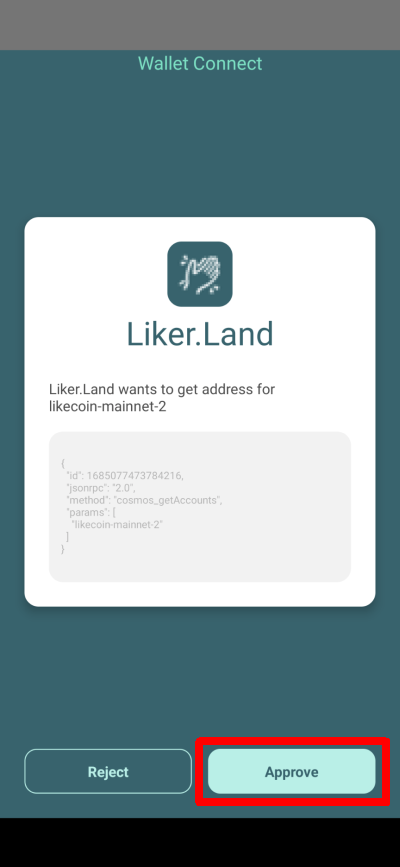
**Step 4**: A Keplr mobile window will pop up. Click "Approve".

<figure><img src="/files/1i91lzTYPNdU8fLVdkvO" alt=""><figcaption><p>A Keplr mobile window will pop up. Click "Approve"</p></figcaption></figure>

**Step 5**. The Collecting NFT page will appear in the browser.

<figure><img src="/files/wxMru8JQJaf3PFekmz5k" alt=""><figcaption><p>The Collecting NFT page will appear in the browser</p></figcaption></figure>

**Step 6**: Return to the Keplr mobile and click "Approve".

<figure><img src="/files/vX3NJIH52O9vodi14AIk" alt=""><figcaption><p>Return to the Keplr mobile and click "Approve"</p></figcaption></figure>

**Step 7**: Go back to the browser, and the Collecting NFT page will appear.

<figure><img src="/files/AhOW28ccMYvdf9oGSP7B" alt=""><figcaption><p>The Collecting NFT page appears in the browser</p></figcaption></figure>

**Step 8**: After the payment is successful!, you can view the purchased NFT on [My Dashboard](/archive/archive/liker-land/dashboard.md) or click "View the NFT."

<figure><img src="/files/w5t6bboiQTBjaY5uOQXv" alt=""><figcaption><p>Click "View the NFT</p></figcaption></figure>

### **Via the Cosmostation app**

#### **Tutorial**

{% embed url="<https://www.youtube.com/watch?v=l6zjetJVNuA>" %}

### **Via the** LikeCoin app

**Step 1**: Log in to the [LikeCoin app](/general-guides/dapp/liker-land/download.md) and use the mobile browser to browse the NFT that you want to collect. Click "Collect Now," "Collect," or the current NFT price.

<figure><img src="/files/W9H4tmkkCKCREHX5Otza" alt=""><figcaption><p>Click "Collect Now"</p></figcaption></figure>

**Step 2**: The Collect NFT page will appear. You can choose to "Leave a signed message to creator" (optional) or simply click "Pay by LIKE". If you decide to leave a message, enter it in the provided field.

<figure><img src="/files/jQPwmDzPX9ZtlDAmeaWX" alt=""><figcaption><p>Leave a signed message to creator and Pay by LIKE</p></figcaption></figure>

**Step 3**: A pop-up window will appear. Click "Liker ID" to log in.

<figure><img src="/files/mGuBvDMljdJSPqPX20Ab" alt=""><figcaption><p>A pop-up window will appear. Click "Liker ID" to log in</p></figcaption></figure>

**Step 4**: A LikeCoin app window will pop up. Click "Approve".

<figure><img src="/files/BL0Lv4NqENZH4RKrDARO" alt=""><figcaption><p>A LikeCoin app window will pop up. Click "Approve"</p></figcaption></figure>

**Step 5**: You will be redirected back to the browser. Click "CONFIRM" to proceed.

<figure><img src="/files/Z63fYRs5wqkgqHf2pcfk" alt=""><figcaption><p>Click "Confirm" to return to the browser</p></figcaption></figure>

**Step 6**. The Collecting NFT page will appear in the browser.

<figure><img src="/files/t8XdSXwv1Dm4jpVwc8uj" alt=""><figcaption><p>The Collecting NFT page will appear in the browser</p></figcaption></figure>

**Step 7**: Return to the LikeCoin app and click "Approve".

<figure><img src="/files/RKTcpb4O5zpWjEcbdhq8" alt=""><figcaption><p>Return to the LikeCoin app and click "Approve"</p></figcaption></figure>

**Step 8**: You will be redirected back to the browser. Click "CONFIRM" again.

<figure><img src="/files/WbeVmS3HOZQdVjVAiuVJ" alt=""><figcaption><p>Click "Confirm" to return to the browser</p></figcaption></figure>

**Step 9**: Go back to the browser, and the Collecting NFT page will appear.

<figure><img src="/files/B3NkunAG3PUh4ZJIoj49" alt=""><figcaption><p>The Collecting NFT page appears in the browser</p></figcaption></figure>

**Step 10**: After the payment is successful!, you can view the purchased NFT on [My Dashboard](/archive/archive/liker-land/dashboard.md) or click "View the NFT."

<figure><img src="/files/l5eZoc88YIZxvGWoIPra" alt=""><figcaption><p>Click "View the NFT</p></figcaption></figure>

{% hint style="warning" %}
If you encounter problems during the purchase process, please go to the settings in the lower right corner and choose "Wallet Connect" to delete the existing link and purchase again.
{% endhint %}


---

# Agent Instructions: Querying This Documentation

If you need additional information that is not directly available in this page, you can query the documentation dynamically by asking a question.

Perform an HTTP GET request on the current page URL with the `ask` query parameter:

```
GET https://docs.v2.like.co/depub/collect-writing-nft/collect-writing-nft-on-mobile.md?ask=<question>
```

The question should be specific, self-contained, and written in natural language.
The response will contain a direct answer to the question and relevant excerpts and sources from the documentation.

Use this mechanism when the answer is not explicitly present in the current page, you need clarification or additional context, or you want to retrieve related documentation sections.